ML Experiment Tracking with MLFlow
In this tutorial, we explore some of the infrastructure and platform requirements for large model training, and to support the training of many models by many teams. We focus specifically on experiment tracking (using MLFlow).
To run this experiment, you should have already created an account on Chameleon, and become part of a project.
You must also have added your SSH key to the CHI@TACC site.
Experiment resources
For this experiment, we will provision one bare-metal node with GPUs.
The MLFlow experiment is more interesting if we run it on a node with two GPUs, because then we can better understand how to configure logging in a distributed training run. But, if need be, we can run it on a node with one GPU.
We can browse Chameleon hardware configurations for suitable node types using the Hardware Browser. For example, to find nodes with 2x GPUs: if we expand “Advanced Filters”, check the “2” box under “GPU count”, and then click “View”, we can identify some suitable node types.
In this version, we use NVIDIA compute_liqid nodes at CHI@TACC.
- The
compute_liqidnodes at CHI@TACC have one or two NVIDIA A100 40GB GPUs. As of this writing,liqid01andliqid02have two GPUs. - Alternatively, to use
gpu_mi100nodes and follow the AMD version, refer to the AMD instructions. - Alternatively, to use a VM with an H100 GPU on KVM@TACC, refer to the VM instructions.
Once you decide on GPU type, make sure to follow the instructions specific to that GPU type.
Create a lease
To use GPU resources on Chameleon, we must reserve them in advance. We can reserve a 3-hour block for this experiment.
We can use the OpenStack graphical user interface, Horizon, to submit a lease.
Then,
-
from the Chameleon website
-
click “Experiment” > “CHI@TACC”
-
log in if prompted to do so
-
check the project drop-down menu near the top left (which shows e.g. ”CHI-XXXXXX”), and make sure the correct project is selected.
-
On the left side, click on “Reservations” > “Leases”, and then click on “Host Calendar”. In the “Node type” drop down menu, change the type to
compute_liqidto see the schedule of availability. You may change the date range setting to “30 days” to see a longer time scale. Note that the dates and times in this display are in UTC. You can use WolframAlpha or equivalent to convert to your local time zone. -
Once you have identified an available three-hour block in UTC time that works for you in your local time zone, make a note of:
- the start and end time of the time you will try to reserve. (Note that if you mouse over an existing reservation, a pop up will show you the exact start and end time of that reservation.)
- and the name of the node you want to reserve. (We will reserve nodes by name, not by type, to avoid getting a 1-GPU node when we wanted a 2-GPU node.)
-
Then, on the left side, click on “Reservations” > “Leases”, and then click on “Create Lease”:
- set the “Name” to
mlflow_netID, wherenetIDis your actual net ID. - set the start date and time in UTC. To make scheduling smoother, please start your lease on an hour boundary, e.g.
XX:00. - modify the lease length (in days) until the end date is correct. Then, set the end time. To be mindful of other users, you should limit your lease time to three hours as directed. Also, to avoid a potential race condition that occurs when one lease starts immediately after another lease ends, you should end your lease ten minutes before the end of an hour, e.g. at
YY:50. - Click “Next”.
- set the “Name” to
-
On the “Hosts” tab,
- check the “Reserve hosts” box
- leave the “Minimum number of hosts” and “Maximum number of hosts” at 1
- in “Resource properties”, specify the node name that you identified earlier.
-
Click “Next”. Then, click “Create”. (We won’t include any network resources in this lease.)
Your lease status should show as “Pending”. Click on the lease to see an overview. It will show the start time and end time, and it will show the name of the physical host that is reserved for you as part of your lease. Make sure that the lease details are correct.
Open this experiment on Trovi
Since you will need the full lease time to execute your experiment, you should read all of the experiment material ahead of time in preparation, so that you make the best possible use of your time.
When you are ready to begin, open this experiment on Trovi:
-
Use this link: ML experiment tracking with MLFlow on Chameleon (NVIDIA) on Trovi
-
Then, click “Launch on Chameleon”. This will start a new Jupyter server for you, with the experiment materials already in it.
Inside the mlflow-chi directory, continue with 2_create_server.ipynb.
Launch and set up NVIDIA A100 40GB server - with python-chi
At the beginning of the lease time, we will bring up our GPU server. We will use the python-chi Python API to Chameleon to provision our server.
Note: if you reserved an AMD GPU server, follow the AMD instructions, then open
2_create_server.ipynb.
We will execute the cells in this notebook inside the Chameleon Jupyter environment.
Run the following cell, and make sure the correct project is selected:
# run in Chameleon Jupyter environment
from chi import server, context, lease
import os

context.version = "1.0"
context.choose_project()
context.choose_site(default="CHI@TACC")
Change the string in the following cell to reflect the name of your lease (with your own net ID), then run it to get your lease:
# run in Chameleon Jupyter environment
l = lease.get_lease(f"mlflow_netID")
l.show()
The status should show as “ACTIVE” now that we are past the lease start time.
The rest of this notebook can be executed without any interactions from you, so at this point, you can save time by clicking on this cell, then selecting “Run” > “Run Selected Cell and All Below” from the Jupyter menu.
As the notebook executes, monitor its progress to make sure it does not get stuck on any execution error, and also to see what it is doing!
We will use the lease to bring up a server with the CC-Ubuntu24.04-CUDA disk image.
Note: the following cell brings up a server only if you don’t already have one with the same name! (Regardless of its error state.) If you have a server in ERROR state already, delete it first in the Horizon GUI before you run this cell.
# run in Chameleon Jupyter environment
username = os.getenv('USER') # all exp resources will have this prefix
s = server.Server(
    f"node-mlflow-{username}",
    reservation_id=l.node_reservations[0]["id"],
    image_name="CC-Ubuntu24.04-CUDA"
)
s.submit(idempotent=True)
Note: security groups are not used at Chameleon bare metal sites, so we do not have to configure any security groups on this instance.
Then, we’ll associate a floating IP with the instance, so that we can access it over SSH.
# run in Chameleon Jupyter environment
s.associate_floating_ip()
# run in Chameleon Jupyter environment
s.refresh()
s.check_connectivity()
In the output below, make a note of the floating IP that has been assigned to your instance (in the “Addresses” row).
# run in Chameleon Jupyter environment
s.refresh()
s.show(type="widget")
Retrieve code and notebooks on the instance
Now, we can use python-chi to execute commands on the instance, to set it up. We’ll start by retrieving the code and other materials on the instance.
# run in Chameleon Jupyter environment
s.execute("git clone --branch main --single-branch https://github.com/teaching-on-testbeds/mlflow-chi")
Set up Docker
To use common deep learning frameworks like Tensorflow or PyTorch, and ML training platforms like MLFlow, we can run containers that have all the prerequisite libraries necessary for these frameworks. Here, we will set up the container framework.
# run in Chameleon Jupyter environment
s.execute("curl -sSL https://get.docker.com/ | sudo sh")
s.execute("sudo groupadd -f docker; sudo usermod -aG docker $USER")
Set up the NVIDIA container toolkit
We will also install the NVIDIA container toolkit, with which we can access GPUs from inside our containers.
# run in Chameleon Jupyter environment
s.execute("curl -fsSL https://nvidia.github.io/libnvidia-container/gpgkey | sudo gpg --dearmor -o /usr/share/keyrings/nvidia-container-toolkit-keyring.gpg \
  && curl -s -L https://nvidia.github.io/libnvidia-container/stable/deb/nvidia-container-toolkit.list | \
    sed 's#deb https://#deb [signed-by=/usr/share/keyrings/nvidia-container-toolkit-keyring.gpg] https://#g' | \
    sudo tee /etc/apt/sources.list.d/nvidia-container-toolkit.list")
s.execute("sudo apt update")
s.execute("sudo apt-get install -y nvidia-container-toolkit")
s.execute("sudo nvidia-ctk runtime configure --runtime=docker")
# for https://github.com/NVIDIA/nvidia-container-toolkit/issues/48
s.execute("sudo jq 'if has(\"exec-opts\") then . else . + {\"exec-opts\": [\"native.cgroupdriver=cgroupfs\"]} end' /etc/docker/daemon.json | sudo tee /etc/docker/daemon.json.tmp > /dev/null && sudo mv /etc/docker/daemon.json.tmp /etc/docker/daemon.json")
s.execute("sudo systemctl restart docker")
and we can install nvtop to monitor GPU usage:
# run in Chameleon Jupyter environment
s.execute("sudo apt update")
s.execute("sudo apt -y install nvtop")
Build a container image for MLFlow
Finally, we will build a container image in which to work on the MLFlow experiment, that has:
- a Jupyter notebook server
- Pytorch and Pytorch Lightning
- CUDA, which allows deep learning frameworks like Pytorch to use the NVIDIA GPU accelerator
- and MLFlow
You can see our Dockerfile for this image at: Dockerfile.jupyter-torch-mlflow-cuda
Building this container may take a bit of time, but that’s OK: we can get it started and then continue to the next section while it builds in the background, since we don’t need this container immediately.
# run in Chameleon Jupyter environment
s.execute("docker build -t jupyter-mlflow -f mlflow-chi/docker/Dockerfile.jupyter-torch-mlflow-cuda .")
Leave that cell running, and in the meantime, open an SSH sesson on your server. From your local terminal, run
ssh -i ~/.ssh/id_rsa_chameleon cc@A.B.C.D
where
- in place of
~/.ssh/id_rsa_chameleon, substitute the path to your own key that you had uploaded to CHI@TACC - in place of
A.B.C.D, use the floating IP address you just associated to your instance.
Prepare data
For the rest of this tutorial, we’ll be training models on the Food-11 dataset. We’re going to prepare a Docker volume with this dataset already prepared on it, so that the containers we create later can attach to this volume and access the data.
First, create the volume:
# runs on node-mlflow
docker volume create food11
Then, to populate it with data, run
# runs on node-mlflow
docker compose -f mlflow-chi/docker/docker-compose-data.yaml up -d
This will run a temporary container that downloads the Food-11 dataset, organizes it in the volume, and then stops. It may take a minute or two. You can verify with
# runs on node-mlflow
docker ps
that it is done - when there are no running containers.
Finally, verify that the data looks as it should. Start a shell in a temporary container with this volume attached, and ls the contents of the volume:
# runs on node-mlflow
docker run --rm -it -v food11:/mnt alpine ls -l /mnt/Food-11/
it should show “evaluation”, “validation”, and “training” subfolders.
Start the tracking server
Now, we are ready to get our MLFlow tracking server running! After you finish this section,
- you should be able to identify the parts of the remote MLFlow tracking server system, and what each part is for
- and you should understand how to bring up these parts as Docker containers
Understand the MLFlow tracking server system
The MLFLow experiment tracking system can scale from a “personal” deployment on your own machine, to a larger scale deployment suitable for use by a team. Since we are interested in building and managing ML platforms and systems, not only in using them, we are of course going to bring up a larger scale instance.
The “remote tracking server” system includes:
- a database in which to store structured data for each “run”, like the start and end time, hyperparameter values, and the values of metrics that we log to the server. In our deploymenet, this will be realized by a PostgreSQL server.
- an object store, in which MLFlow will log artifacts - model weights, images (e.g. PNGs), and so on. In our deployment, this will be realized by MinIO, an open source object storage system that is compatible with AWS S3 APIs (so it may be used as a drop-in self-managed replacement for AWS S3). More generally, we could use any S3-compatible block storage, including Chameleon’s block storage services.
- and of course, the MLFlow tracking server itself. Users can interact with the MLFlow tracking server directly through a browser-based interface; user code will interact with the MLFlow tracking server through its APIs, implemented in the
mlflowPython library.
We’ll bring up each of these pieces in Docker containers. To make it easier to define and run this system of several containers, we’ll use Docker Compose, a tool that lets us define the configuration of a set of containers in a YAML file, then bring them all up in one command.
(However, unlike a container orchestration framework such as Kubernetes, it does not help us launch containers across multiple hosts, or have scaling capabilities.)
You can see our YAML configuration at: docker-compose-mlflow.yaml
Here, we explain the contents of the Docker compose file and describe an equivalent docker run (or docker volume) command for each part, but you won’t actually run these commands - we’ll bring up the system with a docker compose command at the end.
First, note that our Docker compose defines two volumes:
volumes:
  minio_data:
  postgres_data:
which will provide persistent storage (beyond the lifetime of the containers) for both the object store and the database backend. This part of the Docker compose is equivalent to
docker volume create minio_data
docker volume create postgres_data
Next, let’s look at the part that specifies the MinIO container:
  minio:
    image: minio/minio:RELEASE.2025-09-07T16-13-09Z
    restart: always
    expose:
      - "9000"
    ports:
      - "9000:9000"  # The API for object storage is hosted on port 9000
      - "9001:9001"  # The web-based UI is on port 9001
    environment:
      MINIO_ROOT_USER: "your-access-key"
      MINIO_ROOT_PASSWORD: "your-secret-key"
    healthcheck:
      test: timeout 5s bash -c ':> /dev/tcp/127.0.0.1/9000' || exit 1
      interval: 1s
      timeout: 10s
      retries: 5
    command: server /data --console-address ":9001"
    volumes:
      - minio_data:/data  # Use a volume so minio storage persists beyond container lifetime
This specification is similar to running
docker run -d --name minio \
  --restart always \
  -p 9000:9000 -p 9001:9001 \
  -e MINIO_ROOT_USER="your-access-key" \
  -e MINIO_ROOT_PASSWORD="your-secret-key" \
  -v minio_data:/data \
  minio/minio:RELEASE.2025-09-07T16-13-09Z server /data --console-address ":9001"
where we start a container named minio, publish ports 9000 and 9001, pass two environment variables into the container (MINIO_ROOT_USER and MINIO_ROOT_PASSWORD), and attach a volume minio_data that is mounted at /data inside the container. The container image is minio/minio, and we specify that the command
server /data --console-address ":9001"
should run inside the container as soon as it is launched.
However, we also define a health check: we test that the minio container accepts connections on port 9000, which is where the S3-compatible API is hosted. This will allow us to make sure that other parts of our system are brought up only once MinIO is ready for them.
Next, we have
  minio-create-bucket:
    image: minio/mc:RELEASE.2025-08-13T08-35-41Z-cpuv1
    depends_on:
      minio:
        condition: service_healthy
    entrypoint: >
      /bin/sh -c "
      mc alias set minio http://minio:9000 your-access-key your-secret-key &&
      if ! mc ls minio/mlflow-artifacts; then
        mc mb minio/mlflow-artifacts &&
        echo 'Bucket mlflow-artifacts created'
      else
        echo 'Bucket mlflow-artifacts already exists';
      fi"
which creates a container that starts only once the minio container has passed a health check; this container uses an image with the MinIO client mc, minio/mc, and it just authenticates to the minio server that is running on the same Docker network, then creates a storage “bucket” named mlflow-artifacts, and exits:
mc alias set minio http://minio:9000 your-access-key your-secret-key
mc mb minio/mlflow-artifacts
The PostgreSQL database backend is defined in
  postgres:
    image: postgres:18
    container_name: postgres
    restart: always
    environment:
      POSTGRES_USER: user
      POSTGRES_PASSWORD: password
      POSTGRES_DB: mlflowdb
    ports:
      - "5432:5432"
    volumes:
      - postgres_data:/var/lib/postgresql/data  # use a volume so storage persists beyond container lifetime
which is equivalent to
docker run -d --name postgres \
  --restart always \
  -p 5432:5432 \
  -e POSTGRES_USER=user \
  -e POSTGRES_PASSWORD=password \
  -e POSTGRES_DB=mlflowdb \
  -v postgres_data:/var/lib/postgresql/data \
  postgres:18
where like the MinIO container, we specify the container name and image, the port to publish (5432), some environment variables, and we attach a volume.
Finally, the MLFlow tracking server is specified:
  mlflow:
    image: ghcr.io/mlflow/mlflow:v3.9.0
    container_name: mlflow
    restart: always
    depends_on:
      - minio
      - postgres
      - minio-create-bucket  # make sure minio and postgres services are alive, and bucket is created, before mlflow starts
    environment:
      MLFLOW_TRACKING_URI: http://0.0.0.0:8000
      MLFLOW_SERVER_ALLOWED_HOSTS: "*"
      MLFLOW_S3_ENDPOINT_URL: http://minio:9000  # how mlflow will access object store
      AWS_ACCESS_KEY_ID: "your-access-key"
      AWS_SECRET_ACCESS_KEY: "your-secret-key"
    ports:
      - "8000:8000"
    command: >
      /bin/sh -c "pip install psycopg2-binary boto3 &&
      mlflow server --backend-store-uri postgresql://user:password@postgres/mlflowdb
      --artifacts-destination s3://mlflow-artifacts/ --serve-artifacts --host 0.0.0.0 --port 8000"
which is similar to running
docker run -d --name mlflow \
  --restart always \
  -p 8000:8000 \
  -e MLFLOW_TRACKING_URI="http://0.0.0.0:8000" \
  -e MLFLOW_SERVER_ALLOWED_HOSTS="*" \
  -e MLFLOW_S3_ENDPOINT_URL="http://minio:9000" \
  -e AWS_ACCESS_KEY_ID="your-access-key" \
  -e AWS_SECRET_ACCESS_KEY="your-secret-key" \
  --network host \
  ghcr.io/mlflow/mlflow:v3.9.0 \
  /bin/sh -c "pip install psycopg2-binary boto3 &&
  mlflow server --backend-store-uri postgresql://user:password@postgres/mlflowdb
  --artifacts-destination s3://mlflow/ --serve-artifacts --host 0.0.0.0 --port 8000"
and starts an MLFlow container that runs the command:
pip install psycopg2-binary boto3
mlflow server --backend-store-uri postgresql://user:password@postgres/mlflowdb --artifacts-destination s3://mlflow/ --serve-artifacts --host 0.0.0.0 --port 8000
Additionally, in the Docker Compose file, we specify that this container should be started only after the minio, postgres and minio-create-bucket containers come up, since otherwise the mlflow server command will fail.
In addition to the three elements that make up the MLFlow tracking server system, we will separately bring up a Jupyter notebook server container, in which we’ll run ML training experiments that will be tracked in MLFlow. So, our overall system will look like this:
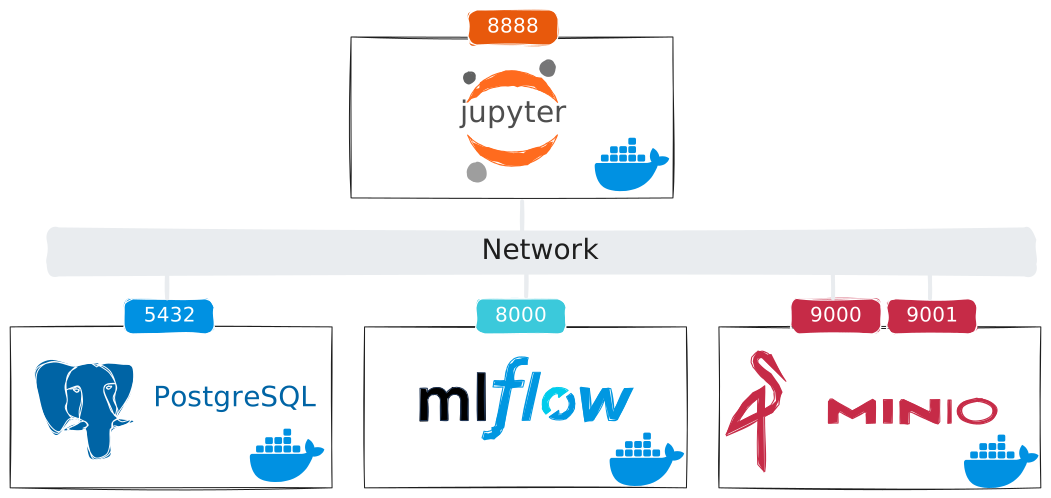
Note that in this example, our ML model development and training service (Jupyter) and ML experiment tracking service (MLFlow) are on the same host. However, this is not necessary in general. It is only necessary that (1) the MLFlow instance is configured (with security groups, etc.) to accept requests on whatever ports it is using, and (2) the Jupyter instance gets the MLFlow instance hostname or IP address. Typically, the MLFlow instance would run on a cheap VM instance, while the ML development and training service might require a more expensive GPU instance. We prefer to decouple these so that we don’t keep an expensive GPU instance running only to keep experiment tracking.
Start MLFlow tracking server system
Now we are ready to get it started! Bring up our MLFlow system with:
# run on node-mlflow
docker compose -f mlflow-chi/docker/docker-compose-mlflow.yaml up -d
which will pull each container image, then start them.
When it is finished, the output of
# run on node-mlflow
docker ps
should show that the minio, postgres, and mlflow containers are running.
Access dashboards for the MLFlow tracking server system
Both MLFlow and MinIO include a browser-based dashboard. Let’s open these to make sure that we can find our way around them.
The MinIO dashboard runs on port 9001. In a browser, open
http://A.B.C.D:9001
where in place of A.B.C.D, substitute the floating IP associated with your server.
Log in with the credentials we specified in the Docker Compose YAML:
- Username:
your-access-key - Password:
your-secret-key
Then, in the “Buckets” sidebar, note the mlflow-artifacts storage bucket that we created as part of the Docker Compose. In the MinIO object browser, you can look at the files that have been uploaded to the object store - but, we haven’t used MLFlow yet, so for now there is nothing interesting here. However, as you start to log artifacts to the MLFlow server, you will see them appear here.
Next, let’s look at the MLFlow UI. This runs on port 8000. In a browser, open
http://A.B.C.D:8000
where in place of A.B.C.D, substitute the floating IP associated with your server. MLFlow includes an experiment tracker, a model registry, and a few other related components. We will focus on the experiment tracker (and to a lesser extent, the model registry). Click on “Experiments” in the sidebar on the left side.
The UI shows a list of tracked “experiments”, and experiment “runs”. (A “run” corresponds to one instance of training a model; an “experiment” groups together related runs.) Since we have not yet used MLFlow, for now we will only see a “Default” experiment and no runs. But, that will change very soon!
Start a Jupyter server
Finally, we’ll start the Jupyter server container, inside which we will run experiments that are tracked in MLFlow. Make sure your container image build, from the previous section, is now finished - you should see a “jupyter-mlflow” image in the output of:
# run on node-mlflow
docker image list
For NVIDIA GPU instances (like compute_liqid), run
# run on node-mlflow
HOST_IP=$(curl --silent http://169.254.169.254/latest/meta-data/public-ipv4 )
docker run  -d --rm  -p 8888:8888 \
    --gpus all \
    --shm-size 16G \
    -v ~/mlflow-chi/workspace_mlflow:/home/jovyan/work/ \
    -v food11:/mnt/ \
    -e MLFLOW_TRACKING_URI=http://${HOST_IP}:8000/ \
    -e FOOD11_DATA_DIR=/mnt/Food-11 \
    --name jupyter \
    jupyter-mlflow
Note that we intially get HOST_IP, the floating IP assigned to your instance, as a variable; then we use it to specify the MLFLOW_TRACKING_URI inside the container. Training jobs inside the container will access the MLFlow tracking server using its public IP address.
-dsays to start the container and detach, leaving it running in the background-rmsays that after we stop the container, it should be removed immediately, instead of leaving it around for potential debugging-p 8888:8888says to publish the container’s port8888(the second8888in the argument) to the host port8888(the first8888in the argument)--gpus allpass the NVIDIA GPUs to the container--shm-size 16Gincreases the memory available for interprocess communication- the host directory
~/mlflow-chi/workspace_mlflowis mounted inside the workspace as/home/jovyan/work/ - the volume
food11is mounted inside the workspace as/mnt/ - and we pass
MLFLOW_TRACKING_URIandFOOD11_DATA_DIRas environment variables.
To access the Jupyter service, we will need its randomly generated secret token (which secures it from unauthorized access). We’ll get this token by running jupyter server list inside the jupyter container:
# run on node-mlflow
docker exec jupyter jupyter server list
Look for a line like
http://localhost:8888/lab?token=XXXXXXXXXXXXXXXXXXXXXXXXXXXXXXXXXXXXXXXXXXXXXXXX
Paste this into a browser tab, but in place of localhost, substitute the floating IP assigned to your instance, to open the Jupyter notebook interface.
In the file browser on the left side, open the work directory.
Open a terminal (“File > New > Terminal”) inside the Jupyter server environment, and in this terminal, run
# runs on jupyter container inside node-mlflow
env
to see environment variables. Confirm that the MLFLOW_TRACKING_URI is set, with the correct floating IP address. Our experiments will log to the MLFlow tracking server at that address.
Track a Pytorch experiment
Now, we will use our MLFlow tracking server to track a Pytorch training job. After completing this section, you should be able to:
- understand what type of artifacts, parameters, and metrics may be logged to an experiment tracking service (MLFlow or otherwise)
- configure a Python script to connect to an MLFlow tracking server and associate with a particular experiment
- configure system metrics logging in MLFlow
- log hyperparametrics and metrics of a Pytorch training job to MLFlow
- log a trained Pytorch model as an artifact to MLFlow
- use MLFlow to compare experiments visually
The premise of this example is as follows: You are working at a machine learning engineer at a small startup company called GourmetGram. They are developing an online photo sharing community focused on food. You have developed a convolutional neural network in Pytorch that automatically classifies photos of food into one of a set of categories: Bread, Dairy product, Dessert, Egg, Fried food, Meat, Noodles/Pasta, Rice, Seafood, Soup, and Vegetable/Fruit.
An original Pytorch training script is available at: gourmetgram-train/train.py. The model uses a MobileNetV2 base layer, adds a classification head on top, trains the classification head, and then fine-tunes the entire model, using the Food-11 dataset.
Run a non-MLFlow training job
Open a terminal inside this environment (“File > New > New Terminal”) and cd to the work directory. Then, clone the gourmetgram-train repository:
# run in a terminal inside jupyter container
cd ~/work
git clone https://github.com/teaching-on-testbeds/gourmetgram-train
In the gourmetgram-train directory, open train.py, and view it directly there.
Then, run train.py:
# run in a terminal inside jupyter container
cd ~/work/gourmetgram-train
python3 train.py
(note that the location of the Food-11 dataset has been specified in an environment variable passed to the container.)
Don’t let it finish (it would take a long time) - this is just to see how it works, and make sure it doesn’t crash. Use Ctrl+C to stop it running after a few minutes.
Add MLFlow logging to Pytorch code
After working on this model for a while, though, you realize that you are not being very effective because it’s difficult to track, compare, version, and reproduce all of the experiments that you run with small changes. To address this, at the organization level, the ML Platform team at GourmetGram has set up a tracking server that all GourmetGram ML teams can use to track their experiments. Moving forward, your training scripts should log all the relevant details of each training run to MLFlow.
First, close the train.py file if it is open. Then, switch to the mlflow branch of the gourmetgram-train repository:
# run in a terminal inside jupyter container, from the "work/gourmetgram-train" directory
git fetch -a
git switch mlflow
The train.py script in this branch has already been augmented with MLFlow tracking code. Run the following to see a comparison betweeen the original and the modified training script.
# run in a terminal inside jupyter container, from the "work/gourmetgram-train" directory
git diff main..mlflow
(press q after you have finished reviewing this diff.)
The changes include:
Add imports for MLFlow:
import mlflow
import mlflow.pytorch
MLFlow includes framework-specific modules for many machine learning frameworks, including Pytorch, scikit-learn, Tensorflow, HuggingFace/transformers, and many more. In this example, most of the functions we will use come from base mlflow, but we will use an mlflow.pytorch-specific function to save the Pytorch model.
Configure MLFlow:
The main configuration that is required for MLFlow tracking is to tell the MLFlow client where to send everything we are logging! By default, MLFlow assumes that you want to log to a local directory named mlruns. Since we want to log to a remote tracking server, you’ll have to override this default.
One way to specify the location of the tracking server would be with a call to set_tracking_uri, e.g.
mlflow.set_tracking_uri("http://A.B.C.D:8000/")
where A.B.C.D is the IP address of your tracking server. However, we may prefer not to hard-code the address of the tracking server in our code (for example, because we may occasionally want the same code to log to different tracking servers).
In these experiments, we will instead specify the location of the tracking server with the MLFLOW_TRACKING_URI environment variable, which we have already passed to the container.
(A list of other environment variables that MLFLow uses is available in its documentation. )
We also set the “experiment”. In MLFlow, an “experiment” is a group of related “runs”, e.g. different attempts to train the same type of model. If we don’t specify any experiment, then MLFlow logs to a “default” experiment; but we will specify that runs of this code should be organized inside the “food11-classifier” experiment.
mlflow.set_experiment("food11-classifier")
Start a run:
In MLFlow, each time we train a model, we start a new run. Before we start training, we call
mlflow.start_run()
or, we can put all the training inside a
with mlflow.start_run():
    # ... do stuff
block. In this example, we actually start a run inside a
try:
    mlflow.end_run() # end pre-existing run, if there was one
except:
    pass
finally:
    mlflow.start_run()
block, since we are going to interrupt training runs with Ctrl+C, and without “gracefully” ending the run, we may not be able to start a new run.
Track system metrics:
Also, when we called start_run, we passed a log_system_metrics=True argument. This directs MLFlow to automatically start tracking and logging details of the host on which the experiment is running: CPU utilization and memory, GPU utilization and memory, etc.
For NVIDIA runs, automatic GPU metrics logging uses pynvml, and we include nvidia-smi output as a text artifact.
Besides for the details that are tracked automatically, we also decided to capture GPU information output and save it as a text file in the tracking server. This type of logged item is called an artifact - unlike some of the other data that we track, which is more structured, an artifact can be any kind of file.
We used
mlflow.log_text(gpu_info, "gpu-info.txt")
to save the contents of the gpu_info variable as a text file artifact named gpu-info.txt.
Log hyperparameters:
Of course, we will want to save all of the hyperparameters associated with our training run, so that we can go back later and identify optimal values. Since we have already saved all of our hyperparameters as a dictionary at the beginning, we can just call
mlflow.log_params(config)
passing that entire dictionary. This practice of defining hyperparameters in one place (a dictionary, an external configuration file) rather than hard-coding them throughout the code, is less error-prone but also easier for tracking.
Log metrics during training:
Finally, the thing we most want to track: the metrics of our model during training! We use mlflow.log_metrics inside each training run:
mlflow.log_metrics(
{"epoch_time": epoch_time,
    "train_loss": train_loss,
    "train_accuracy": train_acc,
    "val_loss": val_loss,
    "val_accuracy": val_acc,
    "trainable_params": trainable_params,
    }, step=epoch)
to log the training and validation metrics per epoch. We also track the time per epoch (because we may want to compare runs on different hardware or different distributed training strategies) and the number of trainable parameters (so that we can sanity-check our fine tuning strategy).
Log model checkpoints:
During the second part of our fine-tuning, when we un-freeze the backbone/base layer, we log the same metrics. In this training loop, though, we additionally log a model checkpoint at the end of each epoch if the validation loss has improved:
mlflow.pytorch.log_model(food11_model, name="model")
The model and many details about it will be saved as an artifact in MLFlow.
Log test metrics:
At the end of the training run, we also log the evaluation on the test set:
mlflow.log_metrics(
    {"test_loss": test_loss,
    "test_accuracy": test_acc
    })
and finally, we finish our run with
mlflow.end_run()
Run Pytorch code with MLFlow logging
To test this code, run
# run in a terminal inside jupyter container, from the "work/gourmetgram-train" directory
python3 train.py
(Note that we already passed the MLFLOW_TRACKING_URI and FOOD11_DATA_DIR to the container, so we do not need to specify this environment variable again when launching the training script.)
While this is running, in another tab in your browser, open the URL
http://A.B.C.D:8000/
where in place of A.B.C.D, substitute the floating IP address assigned to your instance. You will see the MLFlow browser-based interface. Click on “Experiments” on the left side. Now, in the list of experiments, you should see the “food11-classifier” experiment. Click on it, and make sure you see your run listed. (It will be assigned a random name, since we did not specify the run name.)
Click on your run to see an overview. Note that in the “Source” field of the “About this run” table on the right side, the exact Git commit hash of the code we are running is logged, so we know exactly what version of our training script generated this run.
As the training script runs, you will see a “Metrics” table and a “Parameters” table on this page, populated with values logged from the experiment.
- Look at the “Metrics” section, and note that (at least) the most recent value of each of the system metrics appear there. Once an epoch has passed, model metrics will also appear there.
- Look at the “Parameters” table, and note that the hyperparameters in the
configdictionary, which we logged withlog_params, are all there.
Click on the “System metrics” tab for a visual display of the system metrics over time. In particular, look at the time series chart for the gpu_0_utilization_percentage metric, which logs the utilization of the first GPU over time. Wait until a few minutes of system metrics data has been logged. (You can use the “Refresh” button in the top right to update the display.)
Notice that the GPU utilization is low - the training script is not keeping the GPU busy! This is not good, but in a way it is good - because it suggest some potential for speeding up our training.
Let’s see if there is something we can do. Open train.py (this time, it will be the version with MLFlow tracking!), and add
"num_workers": 16,
to the config near the top.
Then, change
train_loader = DataLoader(train_dataset, batch_size=config["batch_size"], shuffle=True)
val_loader = DataLoader(val_dataset, batch_size=config["batch_size"], shuffle=False)
to
train_loader = DataLoader(train_dataset, batch_size=config["batch_size"], shuffle=True, num_workers=config["num_workers"])
val_loader = DataLoader(val_dataset, batch_size=config["batch_size"], shuffle=False, num_workers=config["num_workers"])
and save this code.
Now, our training script will use multiple subprocesses to prepare the data, hopefully feeding it to the GPU more efficiently and reducing GPU idle time.
Let’s see if this helps! Make sure that at least one epoch has passed in the running training job. Then, use Ctrl+C to stop it. Commit your changes to git:
# run in a terminal inside jupyter container, from the "work/gourmetgram-train" directory
git config --global user.email "netID@nyu.edu" # substitue your own email
git config --global user.name "Your Name"  # substitute your own name
git add train.py
git commit -m "Increase number of data loader workers, to improve low GPU utilization"
(substituting your own email address and name.) Next, run
# run in a terminal inside jupyter container, from the "work/gourmetgram-train" directory
git log -n 2
to see a log of recent changes tracked in version control, and their associated commit hash. You should see the last commit before your changes, and the commit corresponding to your changes.
Now, run the training script again with
# run in a terminal inside the jupyter container, from inside the "work/gourmetgram-train" directory
python3 train.py
In the MLFlow interface, find this new run, and open its overview. Note that the commit hash associated with this updated code is logged. You can also write a note to yourself, to remind yourself later what the objective behind this experiment was; click on the pencil icon next to “Description” and then put text in the input field, e.g.
Checking if increasing num_workers helps bring up GPU utilization.
then, click “Save”. Back on the “Experiments > food11-classifier” page in the MLFlow UI, click on the “Columns” drop-down menu, and check the “Description” field, so that it is included in this overview table of all runs.
Once a few epochs have passed, we can compare these training runs in the MLFlow interface. From the main “Experiments > food11-classifier” page in MLFlow, click on the “📈” icon near the top to see a chart comparing all the training runs in this experiment, across all metrics.
(If you have any false starts/training runs to exclude, you can use the 👁️ icon next to each run to determine whether it is hidden or visible in the chart. This way, you can make the chart include only the runs you are interested in.)
Note the difference between these training runs in:
- the time per epoch (logged as
epoch_time) - the utilization of the active GPU (logged as
gpu_0_utilization_percentage). (By default, system metrics may be shown with wall time on the x-axis; click on the dots in the top right of this plot to access the “Configure” menu, and set the X-axis type to “Step”.)
we should see that your system metrics logging has allowed us to substantially speed up training by realizing that the GPU utilization aws low, and taking steps to address it. At the end of the training run, you will save these two plot panels for your reference.
Once the training script enters the second fine-tuning phase, it will start to log models. On the left side, from the menu that says “Runs, Models, Traces”, click on the “Models” tab and then on one of the logged models. Click on the “Artifacts” tab and find the model, as well as additional details about the model which are logged automatically (e.g. Python library dependencies, size).
Let this training script run to completion (it may take up to 15 minutes), and note that the test scores are also logged in MLFlow.
<!--

Full training run should take: 6 minutes on Liqid, 13 minutes on mi100

-->
Register a model
MLFlow also includes a model registry, with which we can manage versions of our models.
From a “model” page, click the “Register model” button in the top right, and in the “Model” menu, “Create new model”. Name the model food11 and save.
Now, go back to the MLFlow home page, and from the sidebar on the left side, click on the “Models” tab, then on “food11”, and then on “Version 1”. At the top you can see a link to the specific source run that generated the model. This allows us to version models, identify exactly the code, system settings, and hyperparameters that created the model, and manage different model versions in different parts of the lifecycle (e.g. staging, canary, production deployment).
Track a Lightning experiment
In the previous experiment, we manually added a lot of MLFlow logging code to our Pytorch training script. However, for many ML frameworks, MLFLow can automatically log relevant details. In this section, we will convert our Pytorch training script to a Pytorch Lightning script, for which automatic logging is supported in MLFlow, to see how this capability works.
After completing this section, you should be able to:
- understand what Pytorch Lightning is, and some benefits of using Lightning over “vanilla” Pytorch
- understand how to use autologging in MLFlow
Close train.py if it is still open. Then, switch to the lightning branch of the gourmetgram-train repository:
# run in a terminal inside jupyter container, from the "work/gourmetgram-train" directory
git switch lightning
The train.py script in this branch has already been modified for Pytorch Lightning. Open it, and note that we have:
- added imports
- left the data section as is. We could have wrapped it in a
LightningDataModule, but for now, we don’t need to. - moved the training and validation functions, and the model definition, inside a class
LightningFood11Modelwhich inherits from Lightning’sLightningModule. - used build-in Lightning callbacks instead of hand-coding
ModelCheckpoint,EarlyStopping, andBackboneFinetuning - replaced the training loops with a Lightning
Trainer. This also includes baked-in support for distributed training across GPUs - we setdevices="auto"and let it figure out by itself how many GPUs are available, and how to use them.
To test this code, run
# run in a terminal inside jupyter container, from the "work/gourmetgram-train" directory
python3 train.py
Note that we are not tracking this experiment with MLFlow.
Autolog with MLFlow
Let’s try adding MLFlow tracking code, using their autolog feature. Open train.py, and:
- In the imports section, add
import mlflow
import mlflow.pytorch
- Just before
trainer.fit, add:
mlflow.set_experiment("food11-classifier")
mlflow.pytorch.autolog()
mlflow.start_run(log_system_metrics=True)
(note that we do not need to set tracking URI, because it is set in an environment variable).
- At the end, add
mlflow.end_run()
and then save the code.
Commit your changes to git (you can use Ctrl+C to stop the existing run):
# run in a terminal inside jupyter container, from the "work/gourmetgram-train" directory
git add train.py
git commit -m "Add MLFlow logging to Lightning version"
and note the commit hash. Then, test it with
# run in a terminal inside jupyter container, from the "work/gourmetgram-train" directory
python3 train.py
You will see this logged in MLFlow. But because the training script runs on each GPU with distributed training, it will be represented as two separate runs in MLFlow. The runs from “secondary” GPUs will have just system metrics, and the runs from the “primary” GPU will have model metrics as well.
Let’s make sure that only the “primary” process logs to MLFlow. Open train.py, and
- Change
mlflow.set_experiment("food11-classifier")
mlflow.pytorch.autolog()
mlflow.start_run(log_system_metrics=True)
to
if trainer.global_rank==0:
    mlflow.set_experiment("food11-classifier")
    mlflow.pytorch.autolog()
    mlflow.start_run(log_system_metrics=True)
- Change
mlflow.end_run()
to
if trainer.global_rank==0:
    mlflow.end_run()
Commit your changes to git (you can stop the running job with Ctrl+C):
# run in a terminal inside jupyter container, from the "work/gourmetgram-train" directory
git add train.py
git commit -m "Make sure only rank 0 process logs to MLFlow"
and note the commit hash. Then, test it with
# run in a terminal inside jupyter container, from the "work/gourmetgram-train" directory
python3 train.py
You will see this logged in MLFlow as a single run. Note from the system metrics that both GPUs are utilized.
Look in the “Parameters” table and observe that all of these parameters are automatically logged - we did not make any call to mlflow.log_params. (We could have added mlflow.log_params(config) after mlflow.start_run() if we want, to log additional parameters that are not automatically logged - such as those related to data augmentation.)
Look in the “Metrics” table, and note that anything that appears in the Lightning progress bar during training, is also logged to MLFlow automatically.
Let this training job run to completion. (On a node with two GPUs, it should take less than 10 minutes.)
Compare experiments
MLFlow also makes it easy to directly compare training runs.
Open train.py, change any logged parameter in the config dictionary - e.g. lr or total_epochs - then save the file, and re-run:
# run in a terminal inside jupyter container, from the "work/gourmetgram-train" directory
python3 train.py
(On a node with two GPUs, it should take less than 10 minutes.)
Then, in the “Runs” section of MLFlow, select this experiment run and your last one. Click “Compare”.
Scroll to the “Parameters” section, which shows a table with the parameters of the two runs side-by-side. The parameter that you changed should be highlighted.
Then, scroll to the “Metrics” section, which shows a similar table with the metrics logged by both runs. Scroll within the table to see e.g. the test accuracy of each run.
Use MLFlow outside of training runs
We can interact with the MLFLow tracking service through the web-based UI, but we can also use its Python API. For example, we can systematically “promote” the model from the highest-scoring run as the registered model, and then trigger a CI/CD pipeline using the new model.
After completing this section, you should be able to:
- use the MLFlow Python API to search runs
- and use the MLFlow Python API to interact with the model registry
The code in this notebook will run in the “jupyter” container on “node-mlflow”. Inside the “work” directory in your Jupyter container on “node-mlflow”, open the mlflow_api.ipynb notebook, and follow along there to execute this notebook.
First, let’s create an MLFlow client and connect to our tracking server:
# run in jupyter container on node-mlflow
import mlflow
from mlflow.tracking import MlflowClient

# We don't have to set MLflow tracking URI because we set it in an environment variable
# mlflow.set_tracking_uri("http://A.B.C.D:8000/")

client = MlflowClient()
Now, let’s specify get the ID of the experiment we are interesting in searching:
# run in jupyter container on node-mlflow
experiment = client.get_experiment_by_name("food11-classifier")
experiment
We’ll use this experiment ID to query our experiment runs. Let’s ask MLFlow to return the two runs with the largest value of the test_accuracy metric:
# run in jupyter container on node-mlflow
runs = client.search_runs(experiment_ids=[experiment.experiment_id],
    order_by=["metrics.test_accuracy DESC"],
    max_results=2)
Since these are sorted, the first element in runs should be the run with the highest accuracy:
# run in jupyter container on node-mlflow
best_run = runs[0]  # The first run is the best due to sorting
best_run_id = best_run.info.run_id
best_test_accuracy = best_run.data.metrics["test_accuracy"]
model_uri = f"runs:/{best_run_id}/model"

print(f"Best Run ID: {best_run_id}")
print(f"Test Accuracy: {best_test_accuracy}")
print(f"Model URI: {model_uri}")
Let’s register this model in the MLFlow model registry. We’ll call it “food11-staging”:
# run in jupyter container on node-mlflow
model_name = "food11-staging"
registered_model = mlflow.register_model(model_uri=model_uri, name=model_name)
print(f"Model registered as '{model_name}', version {registered_model.version}")
and, we should see it if we click on the “Models” section of the MLFlow UI.
Now, let’s imagine that a separate process - for example, part of a CI/CD pipeline - wants to download the latest version of the “food11-staging” model, in order to build a container including this model and deploy it to a staging environment.
# run in jupyter container on node-mlflow
import mlflow
from mlflow.tracking import MlflowClient

# We don't have to set MLflow tracking URI because we set it in an environment variable
# mlflow.set_tracking_uri("http://A.B.C.D:8000/")

client = MlflowClient()
model_name = "food11-staging"
We can get all versions of the “food11-staging” model:
# run in jupyter container on node-mlflow
model_versions = client.search_model_versions(f"name='{model_name}'")
We can find the version with the highest version number (latest version):
# run in jupyter container on node-mlflow
latest_version = max(model_versions, key=lambda v: int(v.version))

print(f"Latest registered version: {latest_version.version}")
print(f"Model Source: {latest_version.source}")
print(f"Status: {latest_version.status}")
and now, we can download the model artifact (e.g. in order to build it into a Docker container):
# run in jupyter container on node-mlflow
local_download = mlflow.artifacts.download_artifacts(latest_version.source, dst_path="./downloaded_model")
In the file browser on the left side, note that the “downloaded_model” directory has appeared, and the model has been downloaded from the registry into this directory.
Stop MLFlow system
When you are finished with this section, stop the MLFlow tracking server and its associated pieces (database, object store) with
# run on node-mlflow
docker compose -f mlflow-chi/docker/docker-compose-mlflow.yaml down
and then stop the Jupyter server with
# run on node-mlflow
docker stop jupyter
Questions about this material? Contact Fraida Fund
This material is based upon work supported by the National Science Foundation under Grant No. 2230079.
Any opinions, findings, and conclusions or recommendations expressed in this material are those of the author(s) and do not necessarily reflect the views of the National Science Foundation.